How to Choose a Monitor for Working From Home
- 15 Jan, 2026
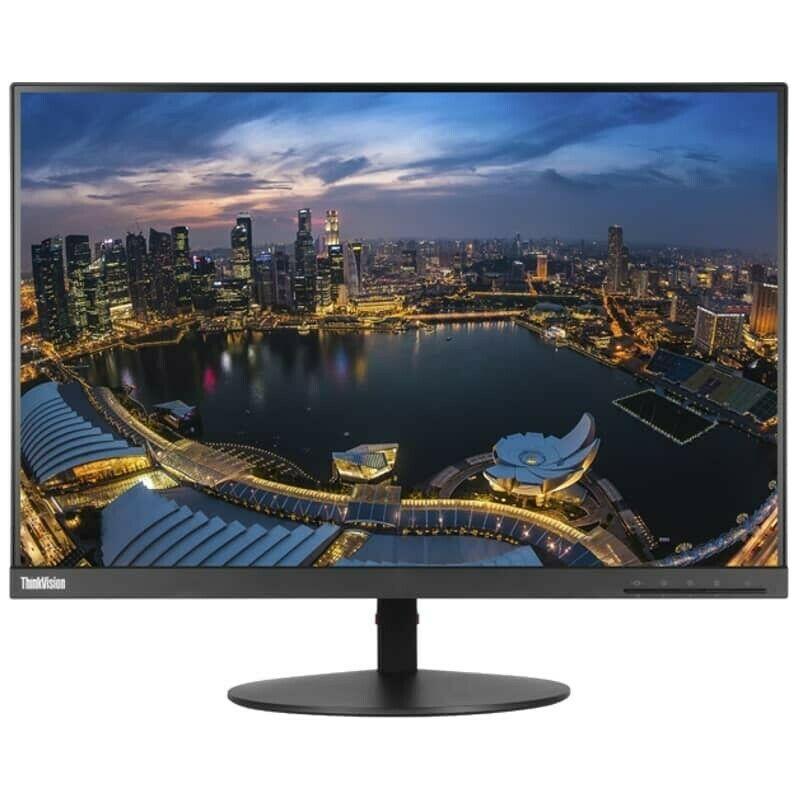
If you work from home, even a few days a week, your monitor is the piece of equipment you look at most. A laptop screen is fine for a quick email, but for a full working day a proper external display makes a real difference to comfort, focus and how much you can fit on screen. The start of a new year is a good moment to look at your setup and fix what has been bothering you.
Here is what to consider when choosing a monitor for a home office, without getting lost in specifications that mostly matter to gamers and video editors.
Screen Size and Resolution
Size and resolution work together. A larger screen with a low resolution can look soft and grainy, while a small screen with a very high resolution may need scaling to make text readable. As a rough guide:
- 22 to 24 inches: a sensible choice for smaller desks. Full HD or slightly higher resolutions work well at this size.
- 27 inches: a popular size for office work. A higher resolution, such as QHD, gives sharp text and plenty of space for two windows side by side.
- Ultrawide screens: useful for spreadsheets, long timelines and people who like many windows open, but they need a deep, wide desk.
Think about the space you actually have. You should be able to see the whole screen without turning your head much, and the monitor should sit roughly an arm’s length away.
Panel Type and Eye Comfort
Most office monitors use IPS, VA or TN panels. IPS panels are known for good viewing angles and consistent colour, which suits most office tasks. VA panels often offer strong contrast, and TN panels are usually found in budget or fast gaming models. For long working days, features such as flicker-free backlighting and a low blue light mode can make the screen more pleasant to look at, and a matte anti-glare finish helps in a bright room.
Comfort is not only about the panel, though. Take regular breaks, adjust the brightness to match the room and look away from the screen now and then. Our article on building a healthier relationship with your devices has more ideas.
Adjustability and Ergonomics
A stand that only tilts forces you to adapt to the monitor instead of the other way round. Look for a stand that adjusts in height, tilt and ideally swivel. The top of the screen should be at or slightly below eye level. If the included stand is basic, check whether the monitor supports a VESA mount so you can add a monitor arm later.
Business models like the 24" Lenovo ThinkVision T24d-10 are designed with this kind of everyday office use in mind, which is why they are a common sight on work desks.
Connections That Fit Your Laptop
Check the ports before you buy. Many recent laptops have only USB-C ports, so a monitor with USB-C input can be very convenient, especially if it can also charge the laptop through the same cable. Otherwise, make sure the monitor has HDMI or DisplayPort inputs that match your computer, or plan for an adapter or docking station. Built-in USB hubs are handy for connecting a keyboard, mouse and webcam once and leaving them plugged in.
A Quick Checklist
- Measure your desk and viewing distance first.
- Choose a size and resolution that keep text sharp and readable.
- Prefer an adjustable stand or VESA support.
- Match the inputs to your laptop’s ports.
- Look for eye comfort features if you work long days.
You can compare screens of different sizes and brands in our monitors category and build a home office setup that you will enjoy using every day.